TMPlayer in the browser, built for the iPhone first
 Nevil Krishna K7 min read
web.tmplayer.org plays the videos in your own Telegram chats in a browser, with nothing to install. I built it mainly for iPhone owners, since TMPlayer has no iOS app, but the same page lays itself out for a phone, a computer or a TV, and it is what TMPlayer's LG and Samsung TV packages open.
This post covers how a Telegram video gets from your chat into Safari's own video player, what the browser can't do and what happens then, how one page picks a phone, desktop or TV layout, and how to add it to an iPhone's Home Screen.
TMPlayer is a GPL-3.0 video player for the videos already in your Telegram chats, with the source on GitHub. It hosts and finds no media of its own, so it is for videos you own or have the right to watch (lawful use). It is an unofficial app that uses the Telegram API and is not made by Telegram.
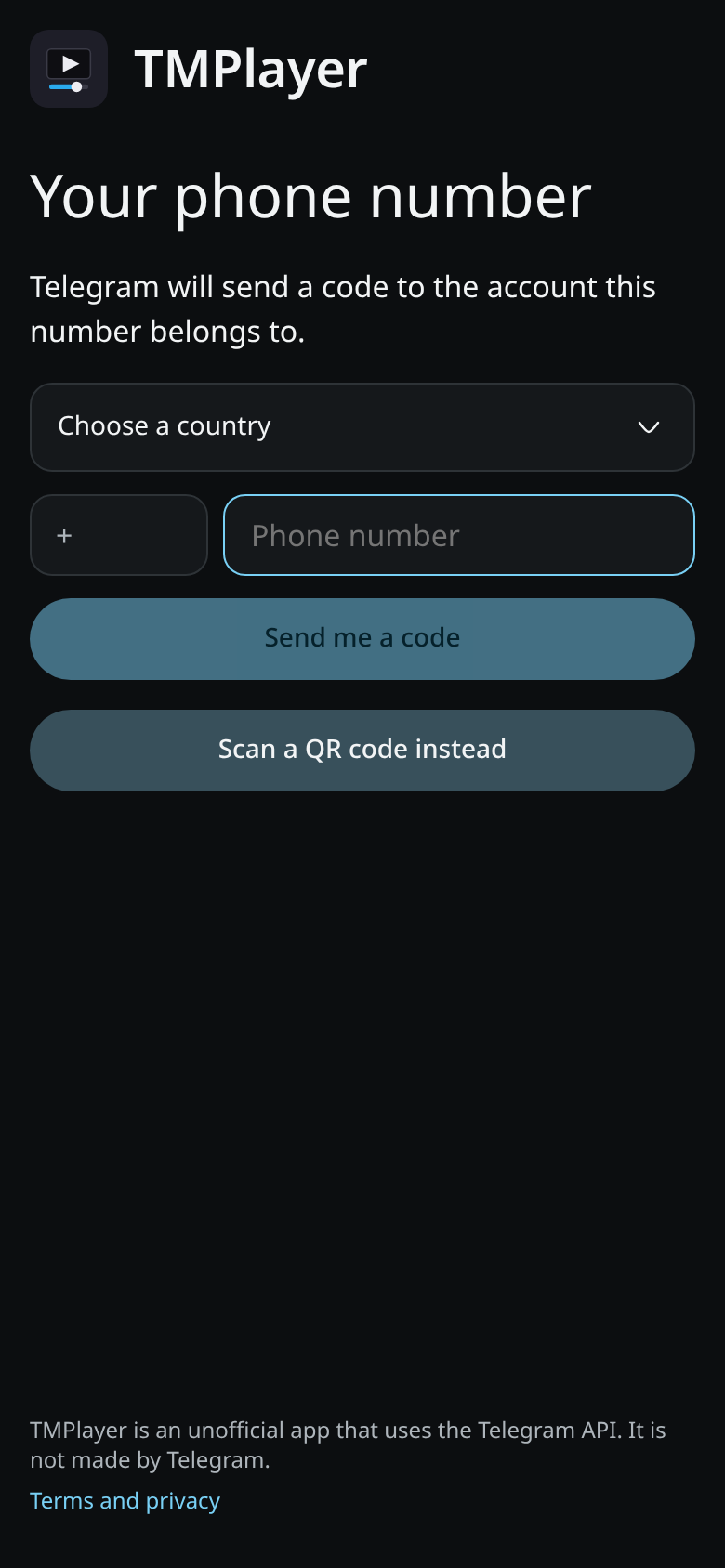
Your account stays in your browser
There is no TMPlayer server between you and Telegram. The page runs a Telegram client, mtcute, inside a Web Worker, and it talks to Telegram directly. The session is stored in the browser's own storage on your device. Signing out clears it.
The worker matters for speed as much as for structure. Telegram's protocol, the encryption and the paging of chat lists all run off the page's main thread, so scrolling a chat with thousands of videos stays smooth. The page itself never imports the Telegram library: it sends small requests to the worker and gets plain data back. That keeps the first load small.
The rules for what counts as a video, which copies of a video are the same one, and how episodes group into a show come from TMPlayer's shared Kotlin core, compiled to JavaScript. A chat groups its videos the same way in the browser as it does on the TV.
How a Telegram video plays in Safari
Safari's own <video> element is the player I wanted on the iPhone. It brings full screen, picture in picture, AirPlay, lock screen controls and sound that keeps playing in the background. A canvas player gives up most of that. The work is getting each file into a form that element accepts, without ever holding a whole video in memory.
The page picks one of three routes for each file:
- Play it as it is. MP4 and MOV files with H.264 or HEVC go straight to the
<video>element. A Service Worker answers the element's byte range requests with real206responses, reading each range from Telegram in chunks of up to 2 MiB, so seeking works the way it does on any website. - Repack it in the page. MKV and MPEG-TS files can't play natively, but the picture inside usually can. mediabunny rewraps them as fragmented MP4 on the fly and feeds them to
ManagedMediaSourceon the iPhone (MediaSourceelsewhere). The picture is copied, never re-encoded. Sound the browser can't play (AC-3, E-AC-3, DTS) is decoded in the page and encoded to AAC, which keeps AirPlay and background sound working. - Say it needs the app. If the browser can't decode the picture at all, the page says so and why, rather than failing with a black screen. A few of those cases have a software fallback: libav.js handles AVI, and HEVC can be converted to H.264 where a browser can't decode HEVC.
There were some iPhone surprises:
- AirPlay. Safari offers
ManagedMediaSourceonly with remote playback turned off, so a repacked video has no AirPlay button. Files that play natively keep it. - HEVC naming. Safari refuses HEVC tagged
hev1in an MP4 header and accepts the same stream taggedhvc1. The repacker writeshvc1. - Subtitles in full screen. iPhone's native full screen shows only text subtitles. Text subtitles become
VTTCues, and picture or styled subtitles switch the player to an in-page full screen. - Holding back data.
ManagedMediaSourcetells the page when it wants data, and may hold off on battery or a slow connection. The feeder waits for that instead of pushing, and always gets the first frames in.
One page, three layouts
The same address serves a phone, a desktop and a TV layout. The choice is made in a few lines of inline script before the first paint, so the page never draws one layout and then jumps to another. It goes by the screen, the pointer and the browser, and Settings, Layout can override it (Auto, Phone, Desktop or TV).
The TV layout is built for a remote. Every screen works with the arrow keys, OK and Back, focus comes back to where you were after a dialog, and sign in leads with a QR code, so you scan it with Telegram on your phone instead of typing with the remote. When a TV's browser opens web.tmplayer.org, it gets the TV build automatically. Adding ?tv=1 shows it in any browser, and ?tv=0 goes back.
TMPlayer releases now include an LG webOS package and a Samsung Tizen package. Each is a thin wrapper: a small page that checks web.tmplayer.org can be reached and then opens it, with a Try again screen if it can't. Android TV and Google TV should still use the Android app, which plays more formats.
Posters without exposing a key
The apps show posters and overviews from TMDB. A browser can't keep an API key secret, so the web app asks a small Cloudflare function in front of TMDB instead. The function holds the key and applies the same matching rules as the apps, so a card shows the same poster in the browser as on the TV. Posters can be turned off in Settings, and a card falls back to the video's own thumbnail when a lookup fails.
The site itself is static files on Cloudflare Pages. Each production deploy runs end to end tests in Chromium and WebKit first, against a fake Telegram account with small test files.
Adding it to an iPhone's Home Screen
- Open web.tmplayer.org in Safari and sign in.
- Tap the Share button, then Add to Home Screen.
- Open TMPlayer from the Home Screen icon.
It then opens in its own window without Safari's address bar, and sound keeps playing when you lock the phone. A Home Screen app is rarely closed, so it checks for a new version when you come back to it after an hour away and offers the update.
What the browser can't do
The browser version is lighter than the apps. These stay app only:
- Downloads for watching offline.
- Formats the browser can't decode at all. The page names the codec and points to the app.
- Casting to a Chromecast, which the phone and desktop apps do.
If you have an Android phone, an Android TV or a computer, the app is still the better choice. The web app is for the iPhone, for a computer you can't install things on, and for a TV that can't run Android apps.
For what changed in the apps at the same time, see TMPlayer 1.28: a new Home, editable history and test versions first.
- SolidJS
- iOS Safari
- PWA
- Service Worker
- MediaSource
- Telegram
Building something like this?
Tell me what you are building. You get a fixed scope and a fixed figure back, from the person who writes the code.
5.013 reviews onGoogle